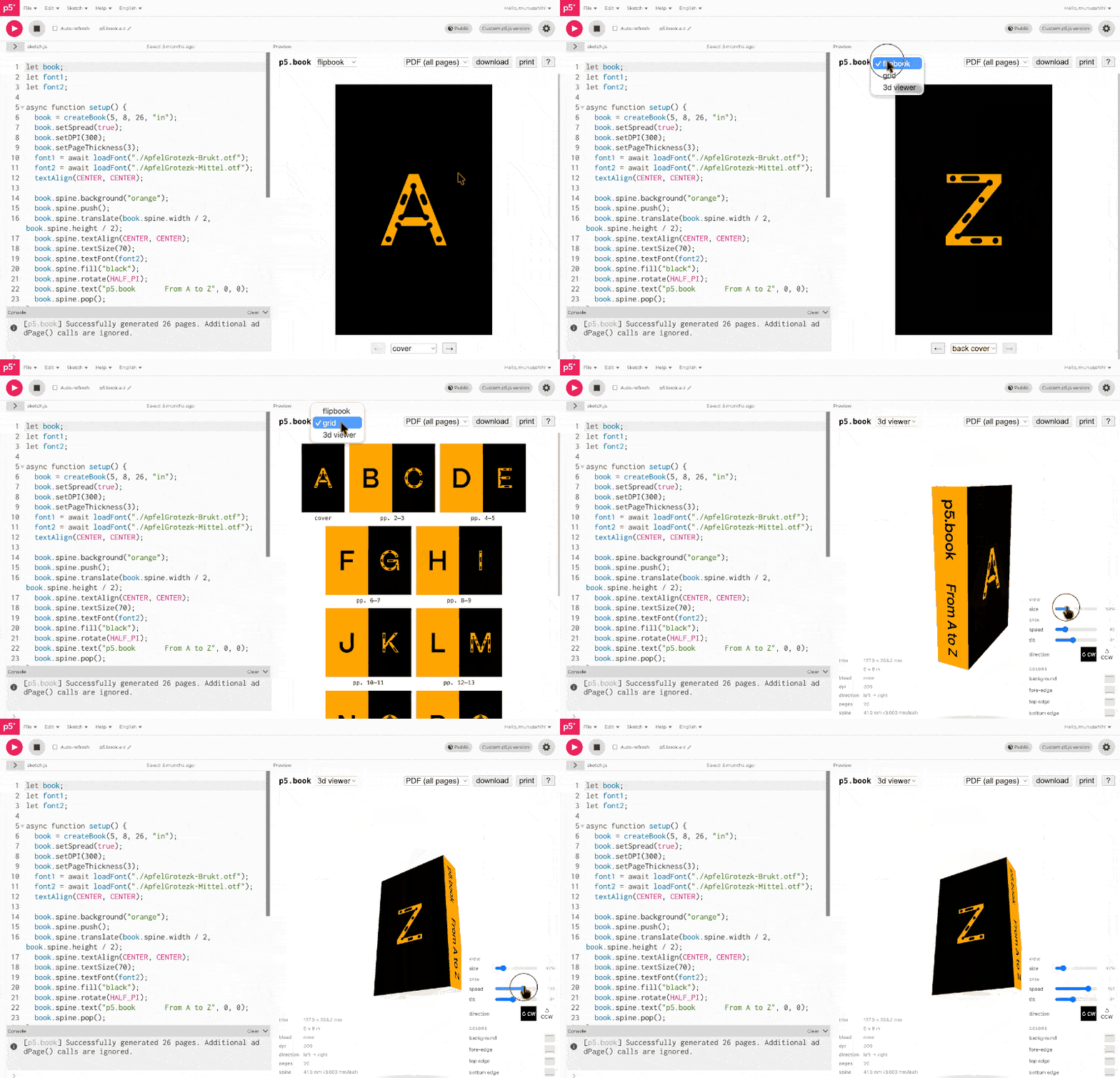
p5.book is a PDF book generator for p5.js 2.0. It captures each canvas frame as a page, compiles them into a PDF, and opens a built-in viewer with 3D preview and print-ready export options.
Designed specifically for artists, designers, and educators who want to create custom books with code! The library is capable of creating everything from simple binded zines to generative photo books, portfolios, and computational novels.
You Can Start Here!
Here are some resources to get you started:
- [Workshop] Computational Book
- [Workshop] Full step-by-step guide
- Starter sketch (p5 editor)
- Starter template (OpenProcessing)
Getting Started
You need to load p5.js, jsPDF, and p5.book in your sketch.
<!-- load these three scripts in order -->
<script src="https://cdn.jsdelivr.net/npm/p5@2/lib/p5.min.js"></script>
<script src="https://unpkg.com/jspdf@latest/dist/jspdf.umd.min.js"></script>
<script src="https://unpkg.com/p5.book@latest/p5.book.js"></script>
let book;
function setup() {
book = createBook(5, 8, 10); // 5×8 inches, 10 pages
book.setDPI(300); // print-quality resolution — also sizes the canvas
}
function draw() {
background(255);
text("Page " + book.pageNumber, 20, 30);
book.addPage(); // always call last — saves PDF after the final page
}Start with a tiny test book first (like 6-10 pages), make sure your page logic works, then scale up. It is much easier to debug composition and sequence before you render 100 pages at high DPI.
Setup
createBook( … )
Call once in setup(). Returns a Book object.
// named paper size
book = createBook("A5", 12);
book = createBook("letter", 12, "my-zine"); // optional filename

// custom size  (default unit: inches)
book = createBook(5, 8, 12);
book = createBook(15, 20, 12, "cm");
book = createBook(5, 8, 12, "in", "my-zine"); // with filename| named sizes | A3 A4 A5 A6 letter legal tabloid — any size jsPDF knows |
| units | "in" inches (default) · "cm" · "mm" · "px" · "pt" |
book.setDPI( dpi )
Set print resolution. The canvas pixel density and height are adjusted automatically so that both axes hit exactly dpi pixels per inch. Call in setup() before addPage(). Prefer this over calling pixelDensity() directly.
book.setDPI(300); // print quality
book.setDPI(150); // lighter file size
Note: if setBleed() was already called, setDPI() rebuilds the bleed graphics buffer at the correct density automatically.
Pages
book.addPage()
Capture the current canvas as the next page. Call once, at the very end of draw(). After the last page the viewer opens and the sketch stops.
book.page & book.pageNumber
book.page | 0-based index. First page = 0. |
book.pageNumber | 1-based. First page = 1. Easier for display. |
book.totalPages | Total number of pages passed to createBook(). |
book.progress
0.0 on the first page → 1.0 on the last. Use with lerp() and map() for gradual change across the book.
Note: when totalPages is not provided (using the finish() workflow), progress always returns 1.0. Derive your own 0→1 value from an external counter if needed.
background(lerp(0, 255, book.progress)); // fades black → white
circle(width / 2, height / 2, book.progress * width); // grows page by page
book.isFirstPage() / book.isLastPage()
if (book.isFirstPage()) {
  text("Cover", 20, 30);
} else if (book.isLastPage()) {
  text("The End", 20, 30);
} else {
  text("p. " + book.pageNumber, 20, 30);
}
book.isLeftPage() / book.isRightPage()
Check if the current page is on the left or right side of a spread. Only meaningful when setSpread(true) is enabled. Respects setDirection(). Returns false for cover and back cover (solo pages).
function setup() {
  book = createBook(5, 8, 12);
  book.setSpread(true);
}

function draw() {
  background(255);

  if (book.isLeftPage()) {
    textAlign(RIGHT);
    text("Page " + book.pageNumber, width - 20, 30);
  } else if (book.isRightPage()) {
    textAlign(LEFT);
    text("Page " + book.pageNumber, 20, 30);
  }

  book.addPage();
}
Layout
book.setDirection( “ltr” | “rtl” )
Set reading direction. Default is "ltr". Use "rtl" for Arabic, Hebrew, manga, etc. Call in setup() before addPage(). Affects spread pairing in the PDF and viewer, isLeftPage() / isRightPage(), viewer arrow-key navigation, and textBox() — column order is reversed and text direction is set to RTL automatically.
book.setSpread(true);
book.setDirection("rtl");
book.setSpread( viewSpread, [exportSpread] )
Set spread behavior for viewer and export in one call. The cover and back cover are kept as solo pages; inner pages are paired when spread is enabled. Total page count must be even when export spread is enabled. Call in setup() before addPage().
book.setSpread(true); // backward-compatible: view=true, export=true
book.setSpread(true, false); // spreads in viewer, single-page export
book.setSpread(true, true); // explicit both on
Use isLeftPage() and isRightPage() to position content based on which side of the spread the current page is on.
book.setViewSpread( bool )
Control spread pairing in the viewer only.
book.setViewSpread(true);book.setExportSpread( bool )
Control spread pairing in main PDF export and print only.
book.setExportSpread(false); // export single pagesCommon workflow:
book.setViewSpread(true);
book.setExportSpread(false);
book.setSaddleStitch( bool )
Enables the Saddle Stitch download option in the viewer, which reorders pages into printer-ready pairs for folding and stapling. Page count must be divisible by 4.
book.setSaddleStitch(true);book.setSkipCoversInMainPDF( bool )
Control whether the main PDF export includes cover + back cover.
false(default): main PDF includes all pages.true: main PDF exports only interior pages (covers are still available insaveCover()).
Applies to both Download -> PDF and Print in the viewer.
book.setSkipCoversInMainPDF(true); // main PDF = interior pages only
book.setSkipCoversInMainPDF(false); // include covers again
book.setSeparateCoverStock( bool )
Enable perfect-binding cover workflow when the cover is printed as a separate sheet.
When enabled:
saveCover()exports 2 pages:- page 1: back cover + spine + front cover
- page 2: first interior + inner spine + last interior
- Main PDF (
Download -> PDFandPrint) excludes cover/back and first/last interior pages.
book.setSeparateCoverStock(true);Disable to return to the normal single-page cover export:
book.setSeparateCoverStock(false);Inside spine styling for page 2 (separate-cover-stock mode):
book.innerSpine = "#ffffff"; // default, blank/paper-like
book.innerSpine = "#f5f0e8"; // custom color
book.setPageThickness( thickness, [unit] )
Set the thickness of one leaf (a two-sided sheet of paper) for the spine width calculation. Defaults to 0.1 mm (standard uncoated stock). Affects both the 3D viewer and the cover PDF.
book.setPageThickness(0.1); // 0.1 mm per leaf (default)
book.setPageThickness(0.004, "in"); // coated/matte stock
book.setPageThickness(0.3); // thick newsprint| unit | |
|---|---|
"mm" (default) · "in" · "pt" |
book.setSpineThickness( thickness, [unit] )
Override the computed spine width with an explicit value. Use this when your printer gives you an exact spine thickness and you want that value to be used directly.
book.setSpineThickness(12); // 12 mm
book.setSpineThickness(0.47, "in"); // inches
book.setSpineThickness(null); // revert to auto-calculation
If both setPageThickness() and setSpineThickness() are used, setSpineThickness() takes precedence.
Bleed & Print
book.setBleed( amount, [unit] )
Add bleed and print marks. Call in setup(), before addPage().
book.setBleed(0.125); // 1/8 inch — US standard
book.setBleed(3, "mm"); // 3 mm — European standard
book.bleed
A p5.Graphics buffer sized to the full bleed area. Draw into it to fill the bleed zone in the PDF. Before setBleed() is called, all calls on book.bleed are silently ignored.
function draw() {
  book.bleed.background(220); // extends into the bleed zone

  fill(0);
  text("Page " + book.pageNumber, 20, 30); // trim area only

  book.addPage();
}
book.bleed.draw( fn )
Scoped drawing into the bleed layer. fn receives the bleed p5.Graphics object as its argument — no need to prefix every call with book.bleed.. If setBleed() was not called, bleed.draw() is a no-op.
book.bleed.draw((g) => {
  g.background(20);
  g.noFill();
  g.stroke(255);
  for (let i = 50; i < 800; i += 50) {
    g.ellipse(g.width / 2, g.height / 2, i, i);
  }
});
book.bleedWidth / book.bleedHeight
Read-only getters — the full bleed page size (trim + bleed on both sides) in your book’s unit. Useful when you need to size geometry to the exact bleed area.
// circle that just reaches each bleed edge
circle(book.bleedWidth / 2, book.bleedHeight / 2, book.bleedWidth);
book.setCropMarks( bool )
Show or hide crop marks (trim/bleed guides). setBleed() enables them automatically.
book.setCropMark(bool), book.setTrimMark(bool), and book.setPrintMarks(bool) are supported as aliases.
Spine
book.spine
A p5.Graphics buffer whose width is proportional to the computed spine thickness (based on page count × setPageThickness()) and whose height matches the canvas. Its content is displayed as the spine face in the 3D viewer and in the cover PDF. Use any p5 drawing methods on it, or use the scoped book.spine.draw(fn) helper. If you never draw on it, a default spine (dark gradient + filename) is shown automatically.
// draw directly
book.spine.background(20);
book.spine.fill(200);
book.spine.push();
book.spine.translate(100, book.spine.height / 2);
book.spine.rotate(-HALF_PI);
book.spine.textAlign(CENTER, CENTER);
book.spine.text("My Book", 0, 0);
book.spine.pop();

// or scoped
book.spine.draw((g) => {
  g.background(20);
  // ... draw on g
});
book.saveCover([filename])
Download a single landscape PDF with back cover · spine · front cover composited side by side — ready for commercial print upload. Uses the spine drawn on book.spine, or a default gradient if none was drawn.
book.saveCover(); // auto filename
book.saveCover("my-book-cover.pdf");
For print shops, I usually export both files: the interior PDF and the cover PDF. Ask for their exact bleed + spine requirements first, then set bleed and page thickness to match before final export.
Typography
book.letterSpacing( px )
Set CSS letter-spacing. Persists like textSize(). Negative tightens, positive loosens. Applied to both the main canvas and the bleed layer.
book.letterSpacing(-2); // tighten — great for large headlines
book.letterSpacing(4); // loosen — spaced-out display text
book.letterSpacing(0); // reset
book.columnNum( n, [gutter] )
Set the number of columns for textBox(). Persists like textSize(). Returns the current count when called with no arguments.
book.columnNum(2, 16); // 2 columns, 16 px gutter
book.columnNum(1); // back to single column
book.textBox( str, x, y, w, h )
Draw word-wrapped text into a box. Respects textSize(), textLeading(), and columnNum(). Returns any overflow text that didn’t fit — pass it to the next page to reflow long documents. Supports Latin word-wrapping and CJK character-level wrapping automatically.
// single page
book.textBox(myText, 40, 40, width - 80, height - 80);
For long documents, pass the returned overflow to the next page:
let overflow = myLongText;

function setup() {
  book = createBook(5, 8);
}

function draw() {
  background(255);
  overflow = book.textBox(overflow, 40, 40, width - 80, height - 80);
  book.addPage();
  if (!overflow) book.finish();
}
Export
book.save([filename])
Manually download the single-page or spread PDF. Usually not needed — triggered automatically after the last addPage().
book.saveAllPages([filename])
Download PDF with all pages (cover + interior).
book.saveAllPages();book.saveNoCover([filename])
Download interior-focused PDF.
book.saveNoCover();Behavior:
- default: excludes front/back cover
- with
book.setSeparateCoverStock(true): also excludes first/last interior pages
book.saveCoversOnly([filename])
Download a PDF with only cover pages.
book.saveCoversOnly();book.finish([filename])
Stop the loop and open the viewer without a known total page count. Use this instead of relying on totalPages when the page count is determined at runtime (e.g. text reflow).
let overflow = myLongText;

function setup() {
  book = createBook(4, 6); // no totalPages argument
}

function draw() {
  background(255);
  overflow = book.textBox(overflow, 40, 40, width - 80, height - 80);
  book.addPage();
  if (!overflow) book.finish();
}
book.saveSaddleStitch([filename])
Download a saddle-stitch imposition PDF — pages reordered into printer-spread pairs for folding and stapling. Page count must be divisible by 4. Also accessible via the viewer’s download dropdown.
book.saveSaddleStitch();book.exportFrames( [format] )
Download every captured page as an individual image file — useful for importing into InDesign, Affinity Publisher, Figma, or video compositing tools. Also accessible via Frames (PNG) / Frames (JPG) in the viewer’s download dropdown.
book.exportFrames(); // PNG (default)
book.exportFrames("png"); // explicit PNG
book.exportFrames("jpeg"); // JPEG, uses the book's jpegQuality setting
Files are named <basename>-0001.png, -0002.png, … downloaded one by one with a small stagger to prevent browser throttling.
Viewer
book.setViewerMode( mode )
Set which viewer mode opens by default after the book finishes rendering. Use "3d" when you want the detailed view to be the 3D book viewer.
book.setViewerMode("3d"); // open directly in the 3D viewer
book.setViewerMode("grid"); // open in thumbnail grid view
book.setViewerMode("flipbook"); // default page-by-page view
Accepted values are "flipbook" (default), "grid", and "3d". Call this in setup() before the viewer opens.
book.set3DBackground( color )
Set the 3D viewer background. Accepts any CSS color string, or null for transparent (default).
book.set3DBackground("#f0ece8");
book.set3DBackground(null); // transparent
book.set3DEdgeColor( color )
Set the color of the book’s page edges in the 3D viewer. Pass a single CSS color string, or an array of up to 3 colors [fore-edge, top, bottom].
book.set3DEdgeColor("#e8e0d4"); // all edges the same
book.set3DEdgeColor(["#ccc", "#ddd", "#bbb"]); // fore · top · bottom
book.showColorPickers( visible )
Show or hide the background / edge color pickers in the 3D viewer GUI. Pass false to hide them (e.g. for a clean demo). Default is true.
book.showColorPickers(false); // hide the color controlsTips
- Canvas size: match your page ratio. For a 5×8 in page, use
createCanvas(500, 800). p5.book creates the canvas automatically with the correct aspect ratio. - Resolution: call
book.setDPI(300)insetup()for crisp print output. This is preferred over callingpixelDensity()directly because it also resizes the canvas height so both axes are exactly on-spec. - Slow frames: add
frameRate(1)insetup()if each page needs more time to render. - Unknown page count: omit
totalPagesfromcreateBook()and callbook.finish()when done — useful for text-reflow or generative books that decide at runtime. - Progress (unknown count):
book.progressreturns1whentotalPagesis not set; derive your own 0→1 value from an external counter if needed. - Viewer: after the last page, a built-in viewer opens with flipbook + grid + 3D view, bleed toggle, download, and print. Use the dropdown to choose PDF / Saddle Stitch / Cover.
- Styling the viewer: override CSS variables in your stylesheet — see
test/style.cssfor the full list.