p5.book A–Z
Open in the p5.js Editor →
This workshop is about making a book with code. We’ll use p5.js to draw each page and p5.book to turn those pages into a print-ready, downloadable PDF. Who needs Adobe InDesign when you have JavaScript?
By the end of the workshop, everyone will have a computationally-generated, printable, downloadable book.
The workshop is structured in four parts:
I’m Munus (pronounced Moo-nus), a Taiwanese Minnan-Hakka creative coder, designer, educator, and organizer based in New York City. I’m an Assistant Professor in Graduate Communications Design at Pratt Institute. My work connects open-source software, collective publishing, design education, and community infrastructure.
p5.book is an open-source library designed to simplify the process of creating printable books from p5.js sketches.
p5.js is a great library for coding visuals. In fact, it’s one of my favorite libraries, but preparing p5.js sketches for print can be a pain. You still need to manage page counts, PDF export, bleed, spreads, and cover logic.
p5.book grew from a desire to help artists and designers create multipage, print-ready books computationally without manually managing PDF generation, page layout, and print production.
Because our time is limited, this is not a JavaScript or p5.js fundamentals class. We’ll learn by reading and changing complete examples.
However, you can find all the functions and syntax in the p5.js reference. If you are new to p5.js, I recommend reading the reference and trying the examples before or after the workshop. You can also check out the p5.js tutorials for a more structured introduction.
Before developing p5.book, I made a different library called p5.(gen)zine.

It offered a browser-based way to code, fork, remix, and collaboratively publish a printable eight-page zine. Its fixed structure and graphical controls used a familiar publishing format as a reason to learn code.
function setupPage() {
  // This replaces the old p5 setup()

  /* Cover */
  cover.randomLayout(["hello world", selfie]);
}

function drawPage() {
  // This replaces the old p5 draw()

  /* Page One */

  // Name a page object—cover, one, two, three, or back—to choose
  // where this drawing appears. The rest is regular p5.js code.
  one.rect(one.mouseX, one.mouseY, 100);

  /* Page Two */
  two.background(random(255), random(255), random(255));
  two.glitchLayout(["hello world", selfie]);

  /* Page Three */
  three.gridLayout(["hello world", selfie]);

  /* Back Cover */
  back.background(random(255), random(255), random(255));
}
p5.book is a related branch of that inquiry. It explores how p5.js can support a broader range of books, formats, and structures by treating each frame as a separate page.
let book;

function setup() {
  book = createBook(4, 6, 8); // 4 inches wide, 6 inches tall, 8 pages
  // book = createBook("A5", 8); // standard paper size (A3, A4, A5, A6, letter, legal, tabloid)
  // book = createBook(100, 150, 100, "mm"); // custom size in millimeters
  // book.setDPI(300); // high-resolution export — for printing
}

function draw() {
  background("orange");
  circle(width / 2, height / 2, frameCount * 50);

  book.addPage();
  // Save this frame as a page—always call this last.
}
The core operation is simple: p5.book reinterprets p5.js’s animation loop as a page-generation loop.
createBook(4, 6, 100) creates a 4 × 6 inch book with 100 pages and a canvas at the same aspect ratio.draw() composes the current canvas with ordinary p5.js functions.book.addPage() captures that canvas and advances the book to its next page.draw() again. After page 100, p5.book stops the sketch and opens the viewer.Page state available inside draw()
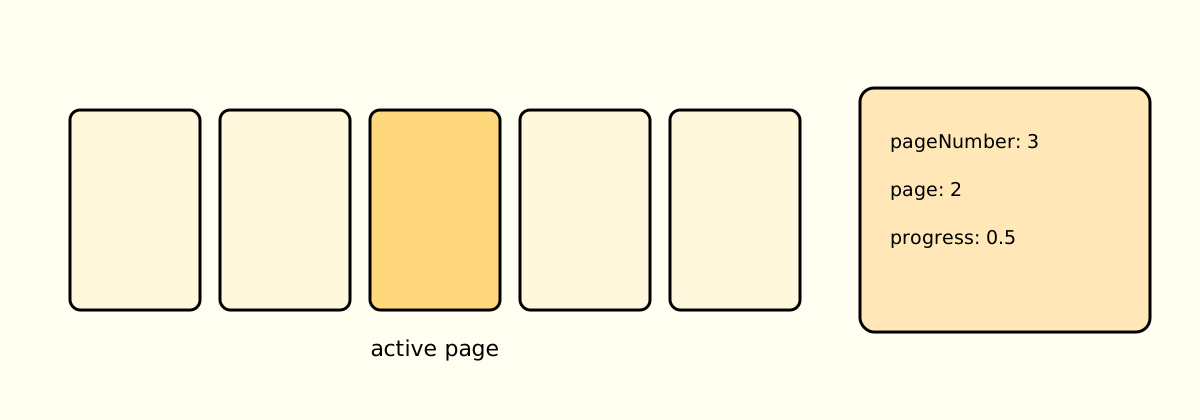
book.page is the 0-based index: 0, 1, 2… Use it to choose an item from
an array.book.pageNumber is the visible 1-based number: 1, 2, 3… Use it to print
a page number.book.totalPages is the page count passed to createBook(). Use it to
calculate or display the book’s length.book.progress moves from 0 on the first page to 1 on the last. Use it
for gradual changes in movement, scale, or color.The book is generated from time: each completed frame becomes the next page in the sequence.
You don’t need to place each page manually. The pages are generated in sequence and displayed automatically in the viewer.
To get started, open your sketch in the p5.js Web Editor. Click the ▼ arrow
next to the sketch name, then select index.html. Alternatively, open
this starter file and
choose File → Duplicate.
Add these script tags inside <head>:
<script src="https://cdn.jsdelivr.net/npm/p5@2/lib/p5.min.js"></script>
<script src="https://unpkg.com/jspdf@latest/dist/jspdf.umd.min.js"></script>
<script src="https://unpkg.com/p5.book@latest/p5.book.js"></script>
Then return to sketch.js. We’ll continue coding as usual, but now we can use
the p5.book API to create books and export PDFs.
If you’re curious, we’re loading three libraries here:
p5.js is the core library for drawing and animation. It provides the canvas and all the drawing functions we will use to create our book pages.
jsPDF generates PDFs in JavaScript. p5.book uses it behind the scenes to
create the final PDF file.
p5.book handles book-specific features such as page management, spreads,
bleed, and PDF export.
Prefer OpenProcessing? Use this starter template instead.
You don’t have to start from scratch. Choose a template that matches your interests or the kind of book you want to create.
Open in the p5.js Editor →
Open in the p5.js Editor →
Open in the p5.js Editor →
One of the most important decisions in book design is choosing its physical size.
The size affects how the book feels, how it is held, and how its content is read. Do you want a tiny book that fits in a pocket or a large, expansive book?
The first arguments in createBook() define the trim size; the final number is
the page count.
book = createBook(4, 6, 100); // 4 × 6 inches
book = createBook("A5", 100); // named paper size
book = createBook(100, 150, 100, "mm"); // custom metric size
You can also use "A3", "A4", "A6", "letter", "legal", or
"tabloid". p5.book creates a canvas with the matching page ratio.
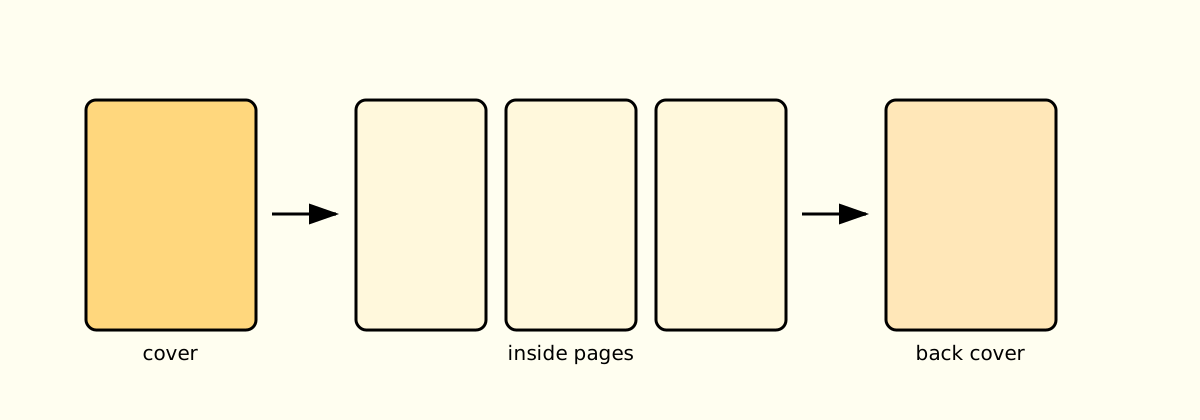
The cover and back cover are part of the total page count. Use
isFirstPage() and isLastPage() to design them differently, then use
pageNumber on the interior pages:
Book structure
function draw() {
  if (book.isFirstPage()) {
    background("orange");
    fill("black");
    text("MY BOOK", width / 2, height / 2);
  } else if (book.isLastPage()) {
    background("black");
    fill("white");
    text("THE END", width / 2, height / 2);
  } else {
    if (book.pageNumber % 2 === 0) {
      background("white");
    } else {
      background("blue");
    }

    // Draw the interior composition here.

    fill("black");
    textSize(16);
    text(book.pageNumber, width - 32, height - 28);
  }

  book.addPage(); // Always call this last.
}
There is no single correct way to write the condition. Checking
book.pageNumber === 1 and book.pageNumber === book.totalPages works too.
Use whichever version is easiest for you to read.
p5.book generates one page at a time and then combines those pages into a
complete book. What you do at the beginning of draw() changes how each page
is rendered:
background("color"): each page begins fresh, opaque, and
filled with a solid color.clear(): each page begins fresh and transparent. Use this
when the bleed layer should show through.Try all three. Accumulation can become the book’s visual rule, while
background() or clear() gives every page a clean start.
Bleed is extra artwork that extends beyond the trim line. If a color or
image should reach the edge of the printed page, draw it on book.bleed, then
clear the main canvas so the bleed layer remains visible underneath.
Bleed, trim, and safe area
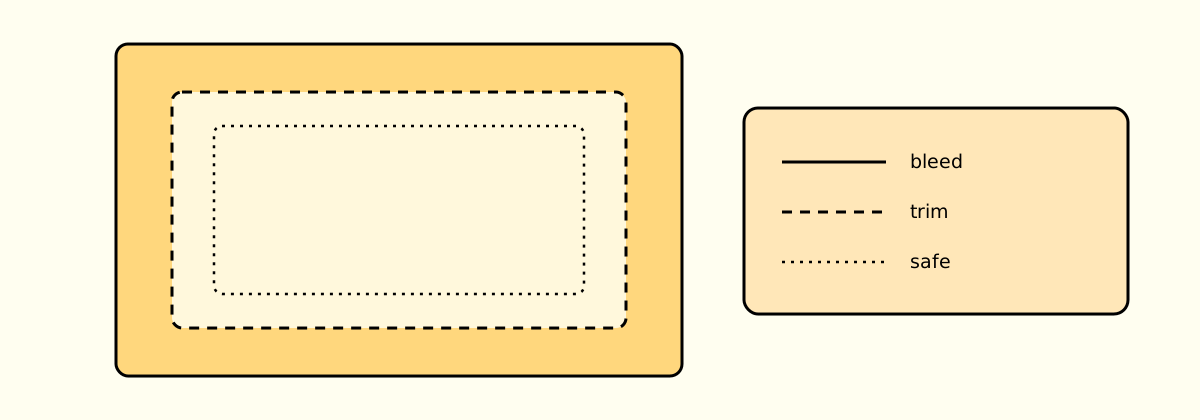
function setup() {
  book = createBook(4, 6, 100);
  book.setBleed(0.125); // 1/8 inch; use setBleed(3, "mm") for 3 mm
}

function draw() {
  book.bleed.background("orange"); // Extends beyond the trim.
  clear(); // Keeps the main page transparent over the bleed layer.

  fill("black");
  text(book.pageNumber, 24, 28);

  book.addPage();
}
setBleed() turns crop marks on automatically. If your printer does not want
them, use book.setCropMarks(false).
book.spine is its own drawing surface. Let p5.book estimate its width from
the page count and paper thickness, or use the exact finished width supplied by
your printer:
function setup() {
  book = createBook(5, 8, 100);
  book.setPageThickness(0.1, "mm"); // Estimate from the paper.
  // book.setSpineThickness(12, "mm"); // Use an exact printer specification.

  book.spine.draw((g) => {
    g.background("black");
    g.fill("white");
    g.textAlign(CENTER, CENTER);
    g.textSize(18);
    g.push();
    g.translate(g.width / 2, g.height / 2);
    g.rotate(HALF_PI);
    g.text("MY BOOK TITLE", 0, 0);
    g.pop();
  });
}

function draw() {
  // Draw the cover, back cover, and interior pages here.
  book.addPage();
}
If you use both thickness methods, setSpineThickness() takes precedence.
Check the spine in the 3D viewer and in the separate Cover PDF.
Before printing, export the files carefully and inspect every part of the book.
book.setDPI(300) in setup() for print-quality output.0.125 inches or 3, "mm".book.addPage() as the final line in draw().book.setSpread(true, false).Choose the binding workflow that matches the final object:
book.setSaddleStitch(true); // Folded booklet.

// Or, for perfect binding with separate cover stock:
book.setSeparateCoverStock(true);
book.innerSpine = "#ffffff";
p5.book currently exports RGB PDFs, not CMYK. Bright screen colors may print duller, and deep blacks may shift. Ask the print shop about its preferred RGB-to-CMYK workflow. If strict CMYK delivery is required, convert the final PDF in a prepress tool.
Here are some books people made with p5.book!
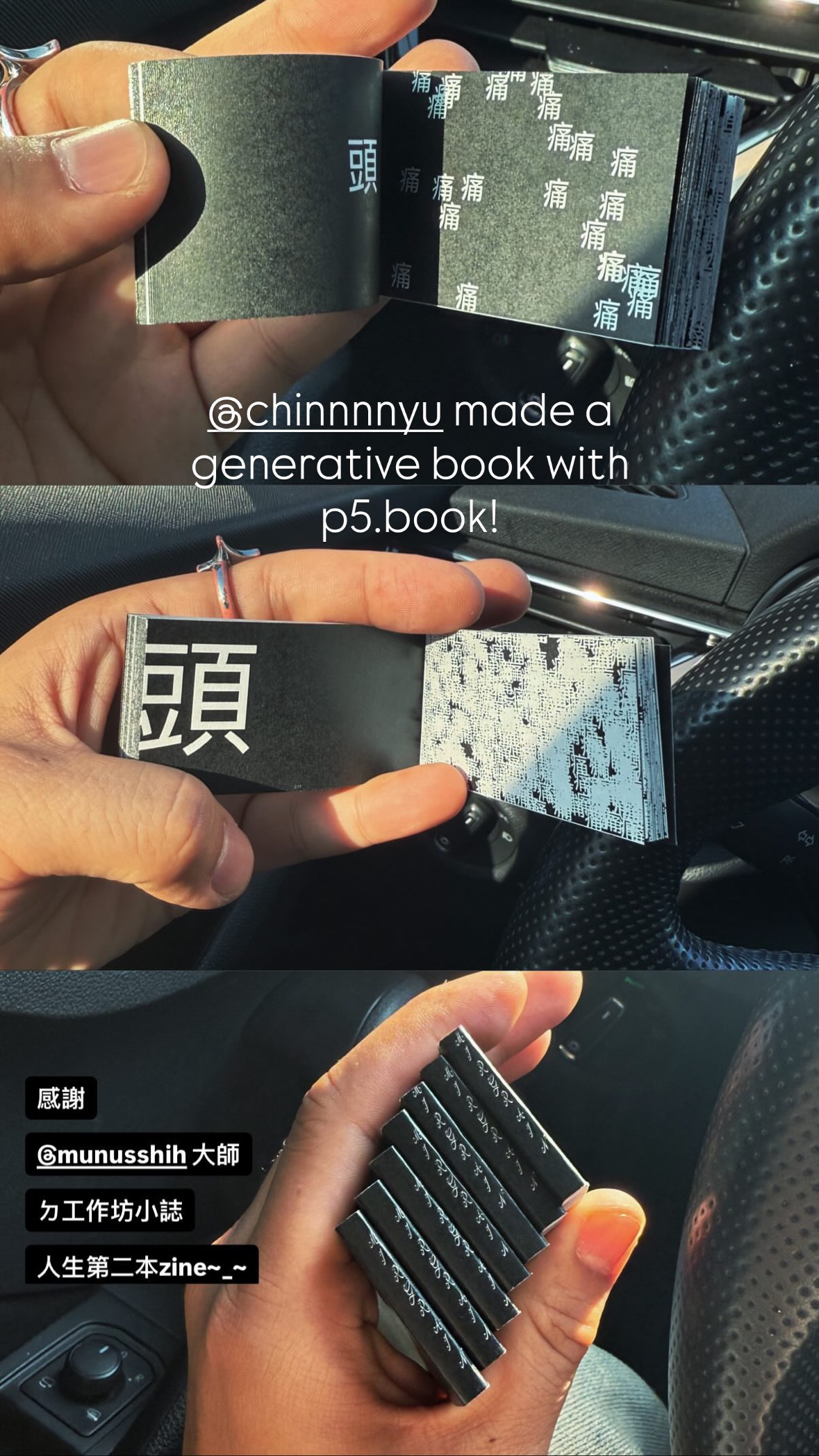
A coded zine shown in the p5.book 3D viewer, made by @wekai111.
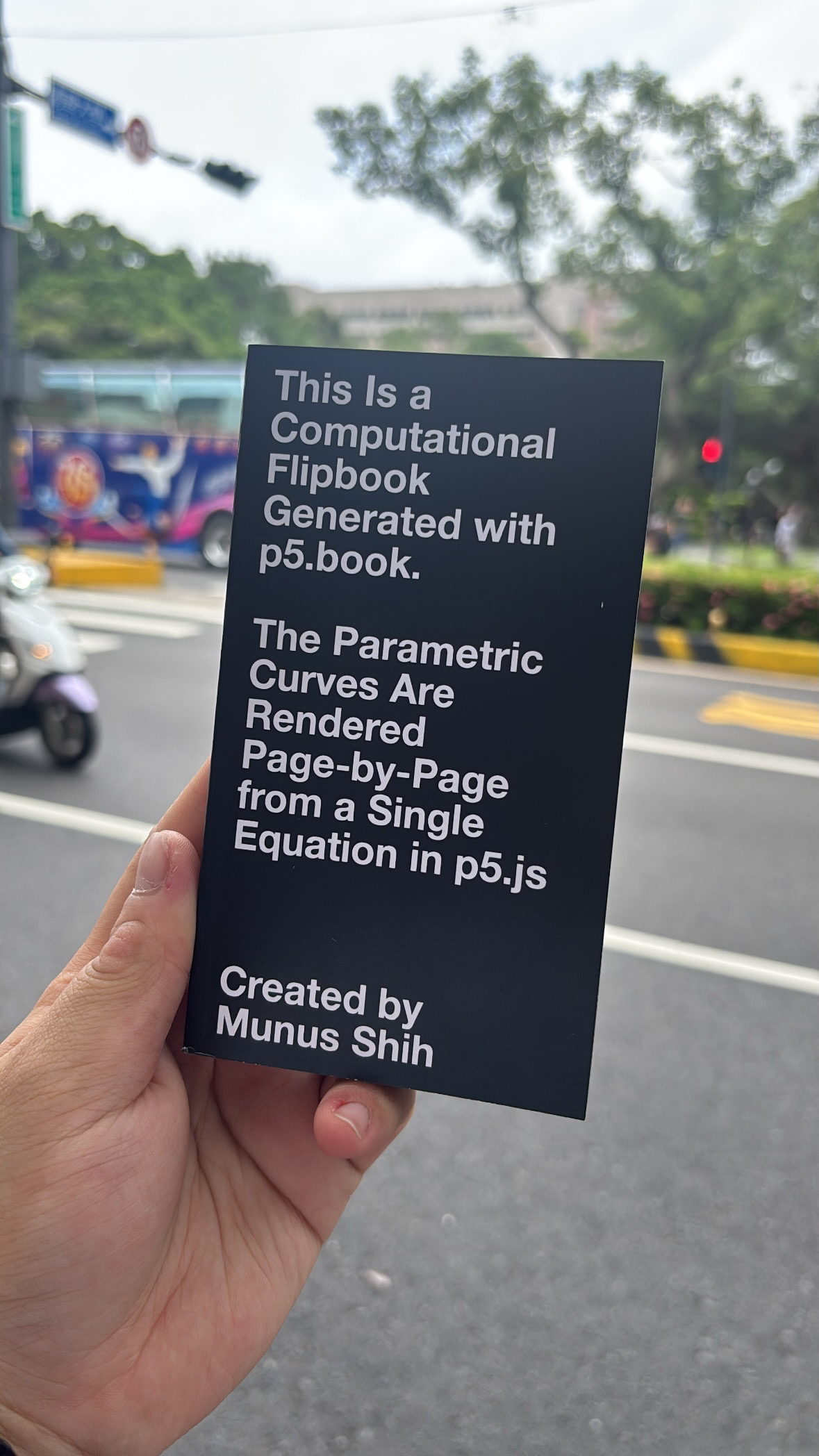
A printed parametric flipbook generated page by page from a single p5.js equation.
p5.book is completely open source, released under the MIT License, and welcomes contributions from the community.
Want to contribute?
Open the source repository · Start a GitHub issue
A useful report is concrete: “In Safari, with this sketch, I expected the
100-page viewer to open after addPage(). Instead, I saw a blank
preview.” That gives the project a reproducible condition to investigate.
What other approaches are there to making books with code? Here are three approaches to computational publishing:
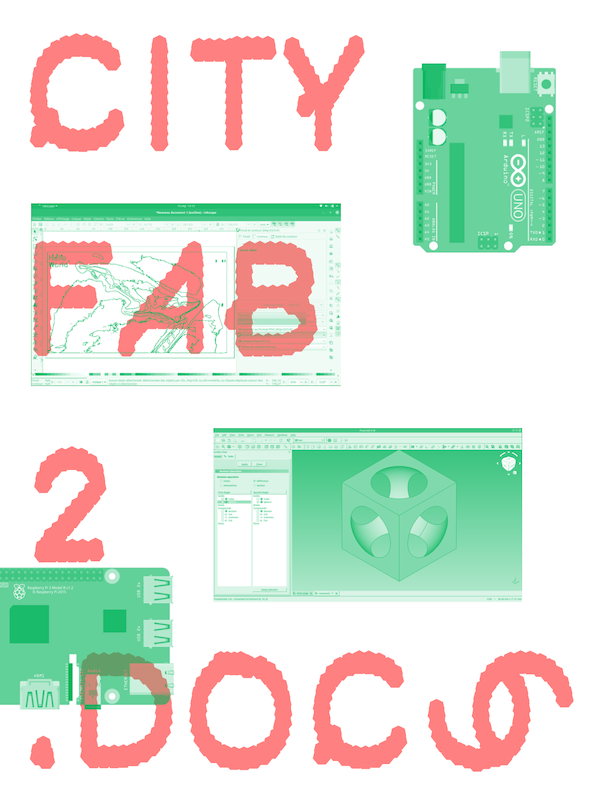
Paged.js starts with HTML and CSS, then adds the rules needed to turn that same web document into paged, print-ready material. It is useful when the website and the book should share a source and a visual language. Aesthetic Programming is one example of this web-to-print approach.
Paged.js →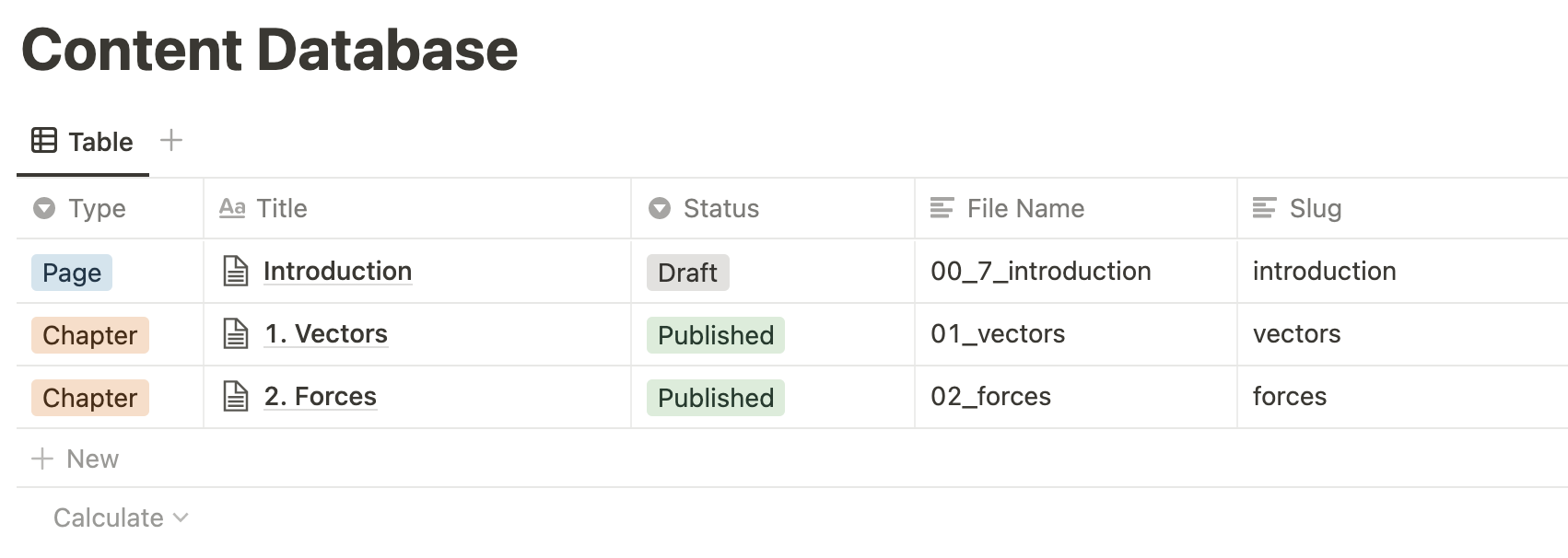
Magic Book is suited to long-form, structured content. In The Nature of Code, chapters are organized in Notion and imported as HTML for the website and print pipelines. Magic Book handles the printable book build, placing the content system at the center.
Magic Book →
p5.book begins with p5.js canvases rather than flowing text. It serves creative coders making generative visuals, visual sequences, flipbooks, zines, and experimental books. Here, the changing visual system is at the center, and the drawing loop becomes the pagination engine.
Source →Though p5.book is not designed for text-heavy books, it can be used to create them too. Here is an example of a text-based book made with p5.book on 100 ways to escape neoliberalism