This is a workshop to make a book with code. We’ll use p5.js to draw each page, and p5.book to turn it into a print-ready, downloadable PDF. Who needs Adobe InDesign when you have JavaScript?
In fact, the spinning book cover animation you see above is made with p5.js and p5.book! I wrote the code for the sketch in about 30 minutes (mostly on trying different colors). You can check out the entire code here.
Hi everyone! I’m Munus (pronounce: Moo-nus), a Taiwanese designer, coder and teacher based in NYC. You can find me on Instagram, Github or my own website.
I currently teach at Pratt Institute MFA Communications Design on various topics including critical code, generative design, and collective publishing. I also run many workshops on creative coding, print workflows, and book-making. If you’re interested in learning more about those, please reach out or follow along on social media!
Why this library exists: p5.js is a great library for coding visuals. In fact it’s one of my favorite libraries, but print workflows and preparing files are annoying to build repeatedly: page counting, PDF export, bleed, spreads, and cover logic.
I also don’t want to have to rely on other closed source softwares like Adobe Indesign to make books, that’s why I built p5.book to wrap those print mechanics so anyone can make a book with code, and we can make book-making more accessible and opensource!
A — primer
If you don’t know what p5.js is: it’s a JavaScript library that makes coding visual art easier. It provides a simple API for drawing shapes, handling user input, and creating animations.
Let’s begin with a quick primer on how p5.js works. You can write p5.js code in any JavaScript environment, but the most common way is to use the p5.js web editor at editor.p5js.org. When you create a new sketch, you get a sketch.js file where you can write your code.
You write your code in two main functions: setup() runs once to set up your canvas and variables, while draw() runs in a loop to create dynamic visuals. p5.js is great for learning programming concepts and making interactive graphics.
function setup() {
  createCanvas(400, 300); // one-time setup: create a canvas to draw on
}

function draw() {
  background("pink");
  fill(255, 0, 0);
  circle(mouseX, mouseY, 50);
  // draw() runs in a loop, so this circle will be drawn every frame
}
Here, we are using many different functions from p5.js to draw a red circle on a pink background. You can use any p5.js functions you like to create your pages — there are no limitations on the visuals you can create.
functionName(argument1, argument2, ...);
background("orange");
circle(x, y, diameter);
A function is a pre-defined block of code that performs a specific task. For example, background("orange") is a function that fills the canvas with orange color, and circle(x, y, diameter) is a function that draws a circle at position (x, y) with the specified diameter.
A function consists of a function name (like background or circle), followed by parentheses (). Inside the parentheses, you can pass arguments that tell the function how to do its job.
For example:
background(255, 0, 0)tells the background function to fill the canvas with red color (255 for red, 0 for green and blue).- The
circle(100, 150, 50)function call tells it to draw a circle at x=100, y=150 with a diameter of 50 pixels.
You can use either RGB, hex codes, or color names to specify colors in p5.js. For example, background("blue"), background(0, 0, 255) and background("#0000ff") will fill the canvas with blue color.
-
Try the color picker here:
-
Or see a list of color names here
background(color);
background(255, 0, 0); // red background
background("blue"); // blue background
background(0, 255, 0, 128); // semi-transparent green background
background(random(255), random(255), random(255)); // random background color
Every time you call a function, it performs its task immediately.
- So when you call
background("orange"), it fills the canvas with a giant box of orange right away. When you callcircle(width / 2, height / 2, 50), it draws the circle on the canvas immediately. - The order of your function calls matters, because they are executed in sequence. If you call
background()aftercircle(), the background will cover the circle and you won’t see it.
Every function is designed to do one specific thing, and you can combine them to create complex visuals. For example, you can use fill() to set the color for shapes, stroke() to set the outline color, and text() to draw text on the canvas.
fill(255, 0, 0); // set fill color to red
stroke(0); // set stroke color to black
strokeWeight(2); // set stroke thickness
circle(100, 150, 50); // draw a circle with the current fill
text("Hello, world!", 200, 100); // draw text at position (200, 100)
You can also save these values in variables and reuse them across your sketch. For example:
let circleColor = [255, 0, 0]; // red color
fill(circleColor);
Every function is unique!
They’re unique in how it works and what arguments it takes.
For example:
background()can take a color name like “orange”, or RGB values likebackground(255, 165, 0)- While shape functions like
circle(x, y, diameter)takes x and y coordinates and a diameter.
background("orange"); // background takes a color argument
circle(100, 150, 50); // circle takes x, y, and diameter
text("Hello", 200, 100); // text takes a string and x, y
The best way to learn is to experiment with different functions and see what they do. You can check out the p5.js reference for a complete list of functions and how to use them.
Or here is a cheatsheet with the most commonly used functions to get you started.
We’re also using p5 2.0, which has some new features and changes from previous versions. If you have experience with p5.js, just be aware that some things might work differently in 2.0. For example, the way you load images or fonts has changed, and there are some new functions for handling color and typography. But overall, the core concepts of drawing and animation are still the same.
I recommend checking out the p5.js 2.0 release notes for a detailed overview of what’s new and different in this version.
Hopefully you have some experience with p5.js already, but if not, no worries! We will try to explain and cover the basics as we go, and you can also check out the p5.js reference for more details on how to use it.
B — add p5.book
However, we are not just making any sketch, we are making a book! So we need to add the p5.book library I created to our project.
Open your sketch in the p5.js editor. Click the ▼ arrow next to your sketch name, then click index.html. Or open this starter file and choose File > Duplicate.
Prefer OpenProcessing? Use this starter template.
Add these inside <head>:
<script src="https://cdn.jsdelivr.net/npm/p5@2/lib/p5.min.js"></script>
<script src="https://unpkg.com/jspdf@latest/dist/jspdf.umd.min.js"></script>
<script src="https://unpkg.com/p5.book@latest/p5.book.js"></script>
Then go back to sketch.js. We will code in sketch.js as usual, but now we have access to the p5.book API to create books and export PDFs.
For people who are curious, we are loading three libraries here.
-
p5.jsis the core library for drawing and animation. It provides the canvas and all the drawing functions we will use to create our book pages. -
jspdfis a popular library for generating PDFs in JavaScript. p5.book uses it under the hood to create the PDF file. We load it separately so you can use it directly if you want to add custom features that p5.book doesn’t have built in. -
p5.bookis the library I built to handle book-specific features like page management, spreads, bleed, and PDF export. It provides a simple API to create books with p5.js.
C — your first book
Let’s move to sketch.js. The first thing to do is create a book in setup():
let book;

function setup() {
  book = createBook(4, 6, 8); // 4 inches wide, 6 inches tall, 8 pages
  // book = createBook("A5", 8); // standard paper size (A3 A4 A5 A6 letter legal tabloid)
  // book = createBook(100, 150, 100, "mm"); // custom size in millimeters
  // book.setDPI(300); // high-resolution export — for printing
}

function draw() {
  background("orange");
  circle(width / 2, height / 2, frameCount * 50);

  book.addPage();
  // saves this frame as a page — always call this last
}
The createBook() function creates a book object and a canvas for you. The canvas is sized to fit inside the trim marks of the page size you specify. In this case, it’s a 4x6 inch book with 8 pages.
When you press ▶ Play. The sketch runs 8 times, once per page. After the last page a viewer opens, try the view dropdown at the top left (flipbook / grid / 3D view), and the download button.
You can change the size of the book by passing different arguments to createBook(). The first two are width and height in inches, the third is page count.
createBook(width, height, pageCount);You can also pass a standard paper size as a string: “A3”, “A4”, “A5”, “A6”, “letter”, “legal”, or “tabloid”. For example, createBook("A5", 20) makes an A5 book with 20 pages.
createBook("A5", pageCount);
createBook("letter", pageCount);
createBook("tabloid", pageCount);
If you want to make a custom size, you can also pass dimensions like millimeters, centimeters, or inches. Just add a fourth argument with the unit:
createBook(100, 200, 20, "mm"); // 100x200 mm book with 20 pages
createBook(10, 15, 15, "cm"); // 10x15 cm book with 15 pages
createBook(4, 6, 10, "in"); // 4x6 inch book with 10 pages
How is the library working? book.addPage() at the end of draw() basically screenshots the canvas and adds it as a page to the PDF. When you reach the total page count, it stops and opens the viewer.
Change the page count: try 4, 12, or 20. The viewer should show however many pages you set.
What happens if you uncomment book.setDPI(300) in setup()? (The canvas stays the same on screen but the PDF exports at higher resolution.)
D — which page am I on?
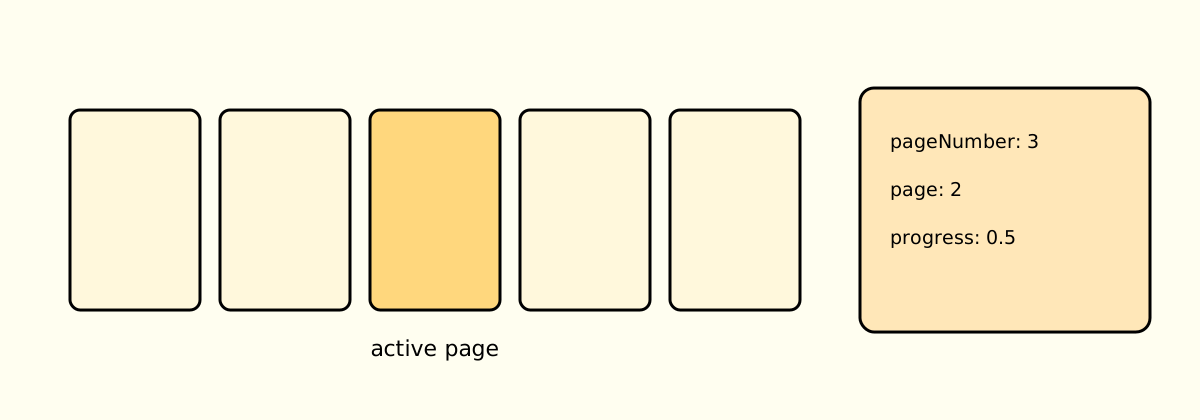
It’s fun to be able to create a book, but the real power of coding is that you can make things change across pages. p5.book gives you some tools to do that. These are some variables you can use in draw() to find out which page you’re on:
Page Number
| function | what it does |
|---|---|
book.pageNumber | current page, 1-based |
book.page | current page, 0-based (good for indexing arrays) |
book.totalPages | total page count |
book.progress | 0 on first page → 1 on last page |
Knowing which page you’re on means you can make things change across pages. Let’s see how we can put these to work.
If you just want to show the page number, you can do that:
function draw() {
  background("orange");

  fill(0);
  textSize(width / 2);
  textAlign(CENTER, CENTER);
  text(book.pageNumber, width / 2, height / 2);

  book.addPage();
}
Here we draw the page number huge and centred on each page. Press ▶ Play to see it in action.
You can use book.pageNumber to make things change per page:
function draw() {
  background("orange");

  // circle moves right each page: 40, 80, 120…
  let x = book.pageNumber * 40;
  circle(x, height / 2, 60);

  book.addPage();
}
We multiply the page number by 40 to get the x position of the circle.
- What else could you change using
book.pageNumber? Try the circle’s size, the background brightness, or the y position. - Try using
book.pageinstead ofbook.pageNumber— how does that change your code?
E — cover and back cover
Book Structure
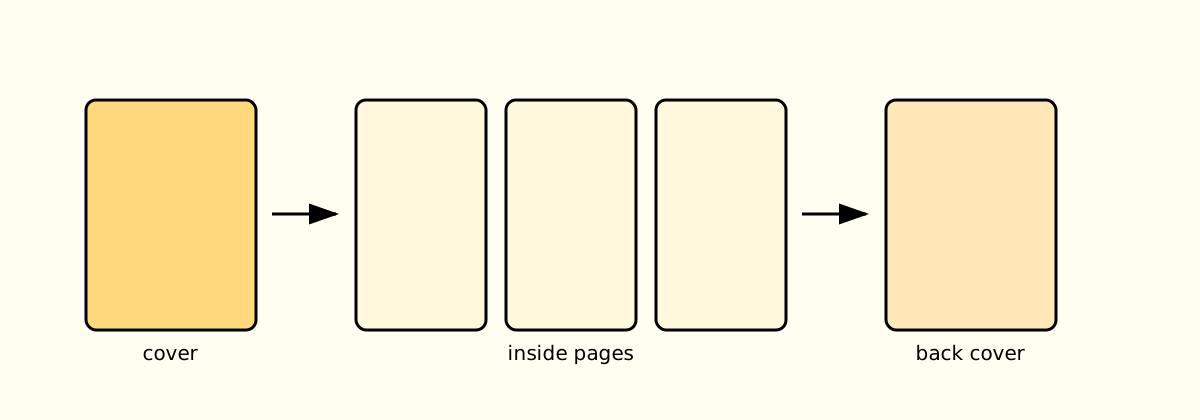
Currently all the pages look the same. But in a real book, the cover and back cover are usually different from the inside pages.
Luckily, p5.book gives you two functions to check if you’re on the first or last page.
Use isFirstPage() and isLastPage() to give special treatment to the cover and back cover.
We can use if and else (conditional statements) to check if we’re on the first or last page, and draw something different for those pages.
if (book.isFirstPage()) {
  // draw cover
} else if (book.isLastPage()) {
  // draw back cover
} else {
  // draw inside pages
}
Let’s make a simple cover and back cover:
function draw() {
  if (book.isFirstPage()) {
    background("orange"); // orange cover
    fill(255);
    textSize(60);
    textAlign(CENTER, CENTER);
    text("COVER", width / 2, height / 2);
  } else if (book.isLastPage()) {
    background("black"); // black back cover
    fill(255);
    textSize(60);
    textAlign(CENTER, CENTER);
    text("THE END", width / 2, height / 2);
  } else {
    background(255);
    fill(0);
    textSize(60);
    text(book.pageNumber, width / 2, height / 2);
  }

  book.addPage();
}
We can also use if(pageNumber === 1) instead of isFirstPage(), and if(pageNumber === totalPages) instead of isLastPage().
if (book.pageNumber === 1) {
  // draw cover
} else if (book.pageNumber === book.totalPages) {
  // draw back cover
} else {
  // draw inside pages
}
There’s no right or wrong way to do it — use whichever you find easier to read and understand.
Instead of just different front and back covers, you could also use the page number to specify different content for each page. Let’s say on page 1 we want to say “Welcome”, on page 2 we want to say “To My Book”, and on page 3 we want to say “Enjoy!”.
function draw() {
  if (book.pageNumber === 1) {
    background("orange");
    fill(255);
    textSize(60);
    textAlign(CENTER, CENTER);
    text("Welcome", width / 2, height / 2);
  } else if (book.pageNumber === 2) {
    background("yellow");
    fill(255);
    textSize(60);
    textAlign(CENTER, CENTER);
    text("To My Book", width / 2, height / 2);
  } else if (book.pageNumber === 3) {
    background("purple");
    fill(255);
    textSize(60);
    textAlign(CENTER, CENTER);
    text("Enjoy!", width / 2, height / 2);
  } else {
    background(255);
    fill(0);
    textSize(60);
    text(book.pageNumber, width / 2, height / 2);
  }

  book.addPage();
}
Remember that page numbers start at 1, so the first page is page 1, the second page is page 2, and so on. You can use as many else if statements as you want to customize each page of your book.
- Design your own cover — try a different colour, add a shape, put your name on it.
- Can you make a story with a beginning, middle, and end?
F — spreads
A spread is two pages that face each other in a book. When you open a book, you see a spread: the left page and the right page together. By default, p5.book treats each page separately. But you can also set it to treat two pages as one spread.
To set your book to spreads, add this line in setup():
book.setSpread(true, true);The two booleans mean:
- first
true= spread layout in the viewer - second
true= spread layout in PDF export/print
Common combinations:
book.setSpread(true, true); // spreads in viewer and export
book.setSpread(true, false); // spreads in viewer, single-page export (common print workflow)
book.setSpread(false, false); // no spreads
When you do this, the canvas doubles in width to fit both the left and right pages. The left page is drawn on the left half of the canvas, and the right page is drawn on the right half. When you export the PDF, it will still be two separate pages, but they will be designed as a spread.
Try it out! Add book.setSpread(true, true) in setup(), and see how the
canvas changes.
Other than the cover and back cover, all the pages are either left or right pages. You can check which one you’re on with book.isLeftPage() and book.isRightPage(). Use those to draw different content on left and right pages.
if (book.isLeftPage()) {
  // draw left page content
} else if (book.isRightPage()) {
  // draw right page content
}
For example, you could make all the left pages blue and all the right pages pink:
if (book.isLeftPage()) {
  background("blue");
} else if (book.isRightPage()) {
  background("pink");
}
You can also decide if this book should open from the left or the right. By default, it opens from the right, which is standard for English books. But if you want to make a book that opens from the left, like in Traditional Chinese, Japanese, Arabic or Hebrew, you can add this line in setup():
book.setDirection("rtl"); // right-to-left- What happens if you set
book.setSpread(true, true)but don’t draw anything that spans across the pages? Try it out and see how the left and right pages are still separate, but the canvas is wider. - Try making a spread where the left page has a shape that continues onto the right page. For example, a big circle that starts on the left and finishes on the right.
G — bleed
Bleed is extra image that extends past the cut line. If your background colour should go right to the edge of the printed page — not stop before the trim — you need bleed.
Bleed/Trim/Safe
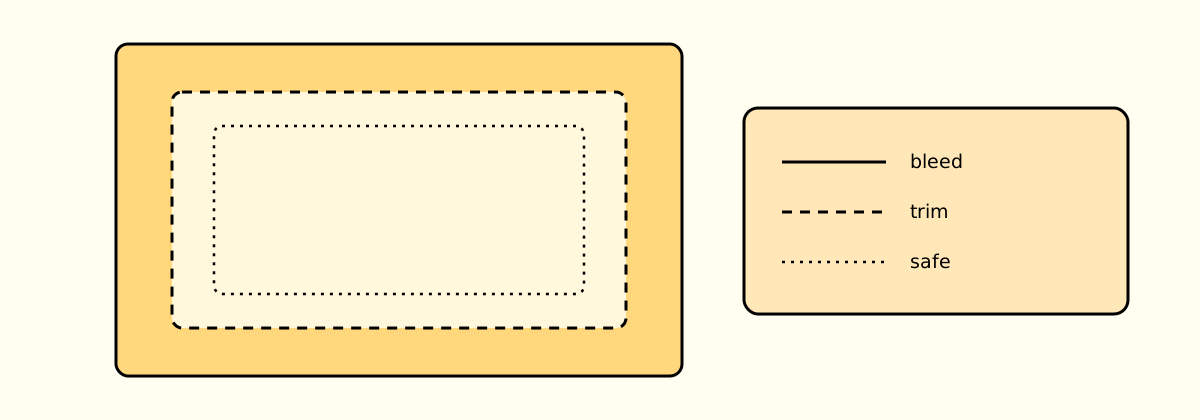
This is because when the pages are printed and cut, there can be a slight shift. If you only draw up to the trim line, you might end up with a thin white edge on one side of the page. By adding bleed, you ensure that even if there’s a small shift during printing, your background will still cover the entire page.
function setup() {
  book = createBook(4, 6, 8);
  book.setBleed(0.125); // 1/8 inch — US standard (use 3, "mm" for Europe)
}

function draw() {
  // book.bleed covers the full bleed area — draw backgrounds here
  book.bleed.background(220, 60, 80);

  // the main canvas sits on top, inside the trim marks
  clear(); // transparent so bleed shows through

  fill(255);
  textSize(20);
  textAlign(LEFT, TOP);
  text(book.pageNumber, 20, 24);

  book.addPage();
}
Try adding book.setBleed(0.125) in setup(), and see how the bleed area is
added around the canvas.
To draw on the bleed area, use book.bleed instead of the main canvas. For
example, book.bleed.background(220, 60, 80) will fill the entire bleed area
with that colour. The main canvas is still where you draw your content, but
the bleed layer is where you draw any backgrounds or elements that should
extend to the edge of the page.
You can also use the bleed layer to add design elements that intentionally go past the trim line, like an image.
let img;

async function setup() {
  book = createBook(4, 6, 8);
  book.setBleed(0.125);

  img = await loadImage("https://picsum.photos/200/300");
}

function draw() {
  // draw a big circle that extends into the bleed area
  book.bleed.image(img, 0, 0, book.bleed.width, book.bleed.height);

  // main canvas content
  clear();
  fill(255);
  textSize(width / 2);
  textAlign(LEFT, TOP);
  text(book.pageNumber, 20, 24);

  book.addPage();
}
Here we load an image and draw it on the bleed layer, making it extend past the trim line. The main canvas is still where we draw the page number, but the image fills the entire bleed area.
setBleed() turns crop marks on automatically, but you can toggle them.
function setup() {
  book = createBook(4, 6, 8);
  book.setBleed(0.125);

  book.setCropMarks(false); // hide crop marks
  book.setCropMark(true); // singular alias, show them again
  book.setTrimMark(false); // alternate alias, hide them again
  // book.setCropMarks(true); // show them again
}- Try changing the bleed size to see how it affects the canvas and bleed area.
- Try turning crop marks off and on with
book.setCropMarks(false/true). - Try drawing different shapes or images on the bleed layer to create interesting designs that go to the edge of the page.
H — typography
As designers, we have a special love for typography. With p5.js, you can load any font and use it to create dynamic typographic designs that change across pages.
p5.js actually has pretty good typography support, with functions for loading fonts, setting text size, alignment, and style. You can use these to create a book that explores type in a creative way. I recommend checking out the p5.js typography reference for all the different functions you can use to manipulate text.
First, you need to load a font in setup(). You can use any font file (like .ttf or .otf) that you have, or you can use a web font from Google Fonts. For example, to load the “Georgia” font, you can do this:
let book;
let myFont;

async function setup() {
  book = createBook(4, 6, 8);
  myFont = await loadFont("inconsolata.otf");

  textFont(myFont); // set the font for drawing text
}
Or you can load a Google Font like this:
let book;
let myFont;

async function setup() {
  book = createBook(4, 6, 8);
  myFont = await loadFont(
    "https://fonts.googleapis.com/css2?family=Bricolage+Grotesque:opsz,wght@12..96,200..800&display=swap",
  );

  textFont(myFont);
}
Here are some of my favorite resources to find open source and free fonts:
- Google Fonts
- Velvetyne Type Foundry
- Colllettivo.it
- The League of Moveable Type
- Font Library
- Open Foundry
- Lost Type Co-op
- Use&Modify
I — generative patterns
The real magic of coding is that you can create things that change and evolve across pages. You can use randomness, loops, and mathematical functions to create generative patterns that are different on each page. For example, you could create a pattern of random lines that changes on every page:
function draw() {
  background(255);
  randomSeed(book.pageNumber * 99); // stable pattern per page

  for (let i = 0; i < 120; i++) {
    stroke(0, 30);
    line(random(width), random(height), random(width), random(height));
  }

  book.addPage();
}
There are endless possibilities for generative design with p5.js. The sky is the limit! Some ideas to try:
You can create a beautiful pattern by using loops and mathematical functions. For example, you could create a spiral pattern that changes with each page:
function draw() {
  background(255);
  translate(width / 2, height / 2); // move origin to center

  let angle = book.pageNumber * 0.1; // change angle per page
  let radius = book.pageNumber * 5; // change radius per page

  for (let i = 0; i < 100; i++) {
    let x = radius * cos(angle + i * 0.1);
    let y = radius * sin(angle + i * 0.1);
    stroke(0, 50);
    line(0, 0, x, y);
  }

  book.addPage();
}
When you run this, you’ll see a spiral pattern that evolves across the pages. You can experiment with different mathematical functions, colors, and shapes to create your own unique generative patterns.
When you create generative patterns, it’s almost like you’re making a flipbook animation. Each page is a frame in the animation, and when you flip through the pages, you see the pattern change and evolve. This is one of the most exciting things about making books with code — you can create dynamic, evolving designs that are different every time you run the sketch.
Here is another example of a generative pattern that uses Perlin noise to create a poetic landscape that changes across pages:
function draw() {
  background(255);
  let noiseScale = 0.01;
  let time = book.pageNumber * 0.1;

  for (let x = 0; x < width; x++) {
    let y = noise(x * noiseScale, time) * height;
    stroke(0);
    line(x, height, x, y);
  }

  book.addPage();
}
The Perlin noise function creates a smooth, natural-looking pattern that resembles hills or waves. As you flip through the pages, the landscape changes and evolves.
In fact here’s a whole book of generative patterns I made with p5.js. The pattern I’m using is based on Lissajous curves, which are created by combining two sine waves. By changing the frequency and phase of the waves, you can create a wide variety of patterns.
J — custom spine
Beyond page content, you can also design the spine itself. p5.book exposes book.spine, a drawing surface that appears in the 3D preview and the cover PDF.
Use setPageThickness() when you want the spine width to be estimated from page count and paper thickness. Use setSpineThickness() when you already know the exact finished spine width from your printer specs.
let book;

function setup() {
  book = createBook(5, 8, 120);
  book.setSpineThickness(12, "mm"); // explicit value takes priority
  book.setDPI(300);
}

function draw() {
  background(245);

  if (book.isFirstPage()) {
    // front cover content
  } else if (book.isLastPage()) {
    // back cover content
  }

  // draw custom spine artwork
  book.spine.draw((g) => {
    g.clear();
    g.background("#111");
    g.fill("#f5f5f5");
    g.textAlign(CENTER, CENTER);
    g.textSize(18);
    g.push();
    g.translate(g.width / 2, g.height / 2);
    g.rotate(HALF_PI); // bottom -> top reading direction
    g.text("MY BOOK TITLE", 0, 0);
    g.pop();
  });

  book.addPage();
}
Quick tips: If you use both methods, setSpineThickness() takes precedence over setPageThickness().
K — make your book
Now it’s your turn to make a book! Use everything you’ve learned so far to create a book that has a cover, back cover, and at least one intentional visual rule that changes across the pages. It can be as simple or as complex as you like — the important thing is to experiment and have fun with it.
If you’re feeling stuck, here are some prompts to get you started:
- Make a book that explores a single shape that changes across pages (like a circle that grows bigger, or a square that rotates).
- Make a book that uses typography to tell a story or create a poem.
- Make a book that creates a generative pattern that evolves across pages.
- Make a book that has a surprise on the last page (like a hidden message or image).
L — ready for print
This part is really about exporting your files cleanly for print.
Export flow
- Use
book.setDPI(300)insetup()for print-quality output. - Add bleed with
book.setBleed(0.125)(US) orbook.setBleed(3, "mm")(EU) if your printer needs it. - Keep
book.addPage()as the last line indraw()so every page is captured correctly. - For most workflows:
book.setSpread(true, false)(orbook.setViewSpread(true)+book.setExportSpread(false)). - If covers should be delivered separately, call
book.setSkipCoversInMainPDF(true)insetup(). - Export from the viewer and review at 100% zoom before sending to print.
For booklet printing/folding, enable Saddle Stitch before export:
book.setSaddleStitch(true);Then choose Download -> Saddle Stitch in the viewer.
You can also choose from:
- PDF (all pages)
- PDF (no cover)
For perfect binding (separate cover stock), use:
book.setSeparateCoverStock(true);This makes Cover export include a second side with first interior | inner spine | last interior, and makes the regular PDF export skip cover/back and also first/last interior pages.
book.innerSpine = "#ffffff"; // blank/paper-like center panelColor note (important)
p5.book currently exports RGB PDFs. It does not support CMYK export yet.
That means:
- Bright neon RGB colors may print duller than on screen.
- Deep blacks may shift unless your printer applies proper conversion.
- You should ask your print shop for their preferred RGB-to-CMYK workflow/profile.
If your printer requires strict CMYK delivery, use p5.book for layout/content generation, then convert the exported PDF in a prepress tool before final print submission.
Print preflight checklist
- Page count and order are correct (especially with spreads).
- Trim size matches your intended final book size.
- Bleed is present on all edges that need it.
- No critical text is too close to trim or spine.
- Cover, spine, and back cover align with your printer template.
- Fonts and thin lines remain readable at real print size.
- If using saddle stitch, page count is divisible by 4 and imposition order looks correct.
M — cheat sheet
Here is a quick cheat sheet of the most important functions and variables in p5.book to help you remember how to use it:
| usually in setup() — run once | |
createBook(4, 6, 8) | 4 in wide, 6 in tall, 8 pages — canvas auto-created |
createBook("A5", 8) | standard paper size (A3 A4 A5 A6 letter legal tabloid) |
book.setDPI(300) | high-resolution export — for printing |
book.setBleed(0.125) | 1/8 inch bleed — or (3, "mm") for European standard |
book.setSpread(true, true) | pair interior pages as spreads for viewer and export |
| usually in draw() — captured pages | |
book.pageNumber | current page — starts at 1 |
book.page | same, starts at 0 — use as an array index |
book.totalPages | total pages |
book.progress | 0 on page 1 → 1 on last page |
book.isFirstPage() | true only on the first page |
book.isLastPage() | true only on the last page |
book.bleed.background(c) | full-bleed background — extends past trim |
book.addPage() | save this page — always put this last |
N — common bugs
Quick debug table for workshop problems:
| symptom | likely cause | quick fix |
|---|---|---|
| only one page exports | book.addPage() was put in setup() | move it to the end of draw() |
| blank PDF pages | capture happens before drawing | draw first, call book.addPage() last |
spread helpers fail (isLeftPage) | spread mode not enabled | call book.setSpread(true, true) in setup() |
| bleed is not visible | bleed layer not used | draw full backgrounds on book.bleed, then clear() main canvas |
| cover/back look same as inside | no first/last page conditions | use book.isFirstPage() and book.isLastPage() |
| wrong page numbering logic | mixed 0-based and 1-based page values | use book.page for arrays, book.pageNumber for display |
| custom font does not appear | font not loaded or not applied | await loadFont(...), then textFont(myFont) |
print preview blocked (ERR_BLOCKED_BY_CLIENT) | browser shields/extensions block blob preview | p5.book now opens a non-blob preview tab; use Ctrl/Cmd+P there |
| Safari opens blank print preview | browser PDF preview race/compat issue | use the non-blob preview tab, or download and print the PDF |
O — agent help
If you run into any issues or have questions about how to use p5.book, you can ask an agent for help. Because we’re using the latest version of p5.js and a custom library, it’s possible that the agent might not have all the information it needs to answer your question. To get the best help, make sure to provide as much context and detail as possible about your issue.
Here are some tips for asking an agent for help with p5.book:
- Say I’m using p5.js 2.0 + a custom library called p5.book at the beginning of your question, so the agent knows the context.
- Provide enough context about the library and your code, for instance include these links or the content from these links:
- Here is a template you can use to structure your question to the agent. Fill in the details about your issue, and the agent will do its best to help you troubleshoot and find a solution.
Prompt template:
I'm using p5.js 2.0 + a custom library called p5.book to create a book with code. Here's the link to the library source: https://unpkg.com/p5.book@latest/p5.book.js and the README: https://github.com/munusshih/p5.book/blob/main/README.md

I'm trying to [briefly describe what you're trying to do].

My code looks like this:
[insert your code here]

The console error I'm getting is:
[exact console error]

Please return:
1) the likely cause
2) a fixed code snippet
3) an explanation of the fix
P — next steps
Now that you have the basics down, you can start experimenting and creating your own unique books with p5.js and p5.book.
I’m excited to see what you create! Remember, the most important thing is to have fun and experiment with different ideas. Don’t be afraid to try something new or make mistakes. That’s how you learn and discover new possibilities!
p5.book is actively developed and available on npm. If you have feedback, suggestions, or want to contribute, please check out the GitHub repo, report any bugs you find, or suggest new features you’d like to see.
If you want to share your book or see what others have made, you can post it on social media with the hashtag #p5book and tag me @munusshih, or send it to me directly at munusshih@gmail.com. I’d love to feature your work on the future documentation and share it with the community!
Q — others (TBD)
Because this workshop focuses on fundamentals, there are many p5.book features we are not covering yet. Here are future topics for undocumented or lightly documented API features:
| letter | planned focus | status |
|---|---|---|
| P | unknown page count workflow with book.finish() | TBD |
| Q | text overflow handling with book.textBox() return | TBD |
| R | clear() and redraw logic across pages | TBD |
| S | advanced spine styling: textures, type systems, edge-safe rules | TBD |
| T | saveSaddleStitch() export and /4 page constraints | TBD |
| U | advanced bleed tools: bleed.draw(), width, height | TBD |
| V | crop mark control with book.setCropMarks() | TBD |
| W | 3D viewer controls: set3DBackground(), edge colors | TBD |
| X | styling p5.book viewer UI with CSS | TBD |
| Y | building custom helper functions for reusable pages | TBD |
| Z | contribution roadmap | TBD |